Once a branch is described, two steps take it toward preservation:
- Validate Branch: Memory Atlas checks each unit against rules V-01 to V-14; the units that pass get the “Validated” status.
- Prepare for Preservation: Memory Atlas runs the checks again, adds the transfer checks (P-01 to P-10) and exports a transfer package to a folder of your choice. You then import this package into Obscura Flow yourself: Memory Atlas does not connect to it.
This is how Léa prepares the transfer of “Projet A — Lisières”: the sub-series, its four files and the twelve items of the scans, 17 units in all.
Validating the branch
Select the top unit of the branch (here “Projet A — Lisières”), then Validate Branch: the button under the description header, the one in the inspector, Preservation › Validate Branch… (⌘L) or the ⌘K palette.
The Validate Branch sheet summarizes the branch (number of units per level) and lists what the checks found, grouped by rule:
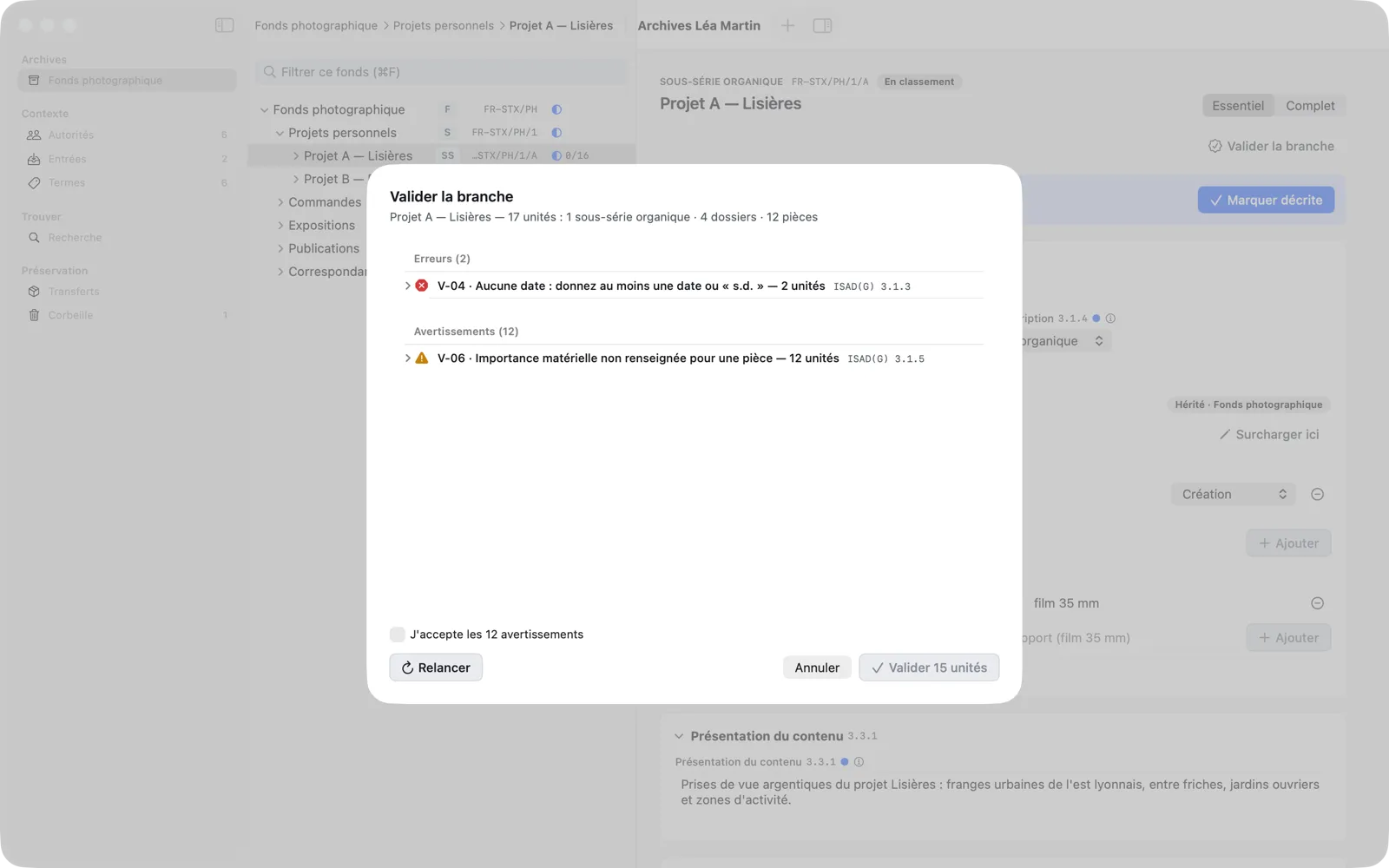
- Errors block validation. Expand a rule to see the units concerned; Fix closes the report and opens the unit directly on the field to fix, highlighted.
- Warnings don’t block, but must be accepted: check I accept the N warnings. Accepted warnings are kept in the report, with your name and the date.
- Run Again reruns the checks after a fix.
Here, two scans have no date (V-04). Léa adds “1998” to items PA_0001 and PA_0002, then runs the checks again: only warnings remain (the items have no extent of their own, which is allowed for an item).
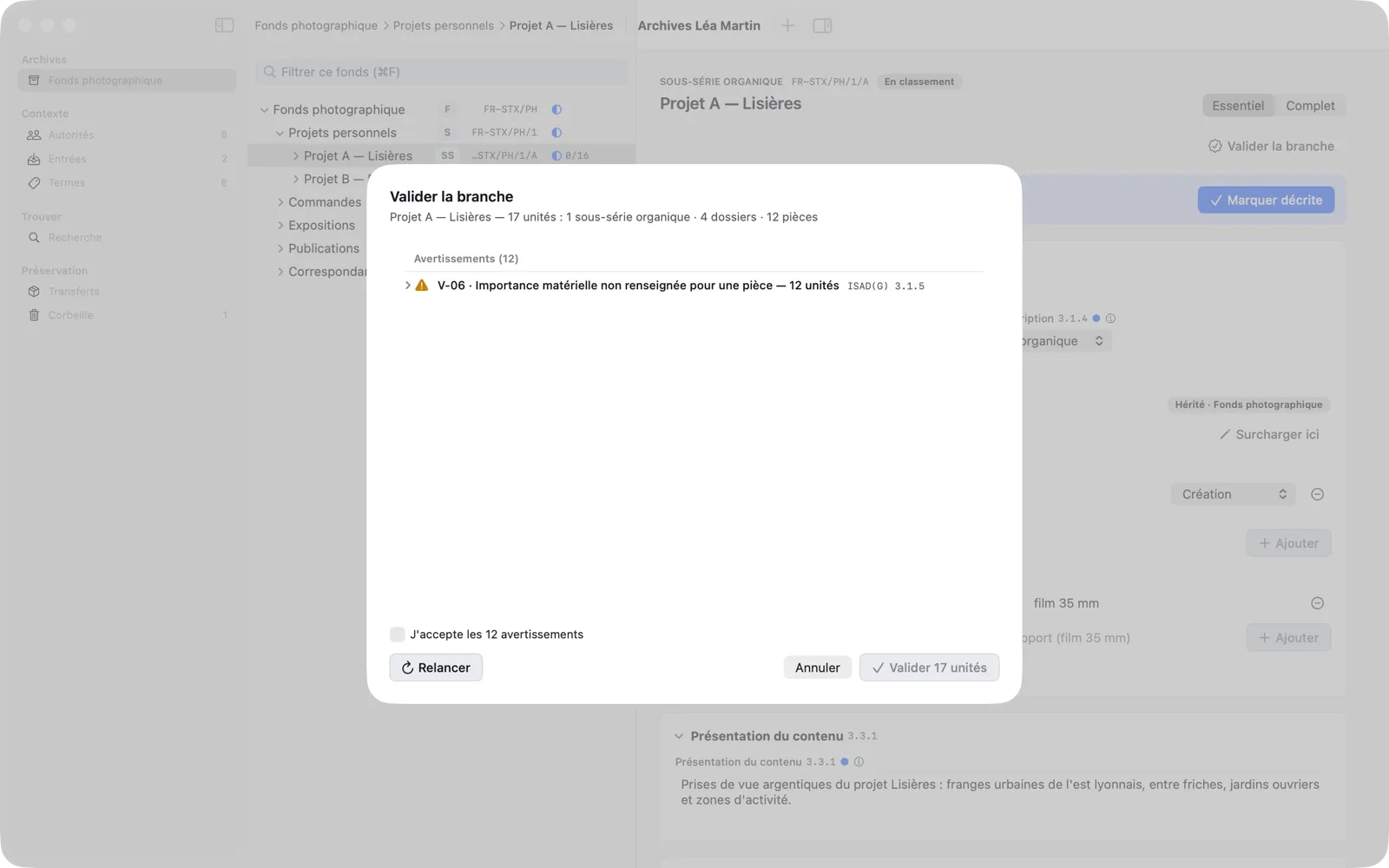
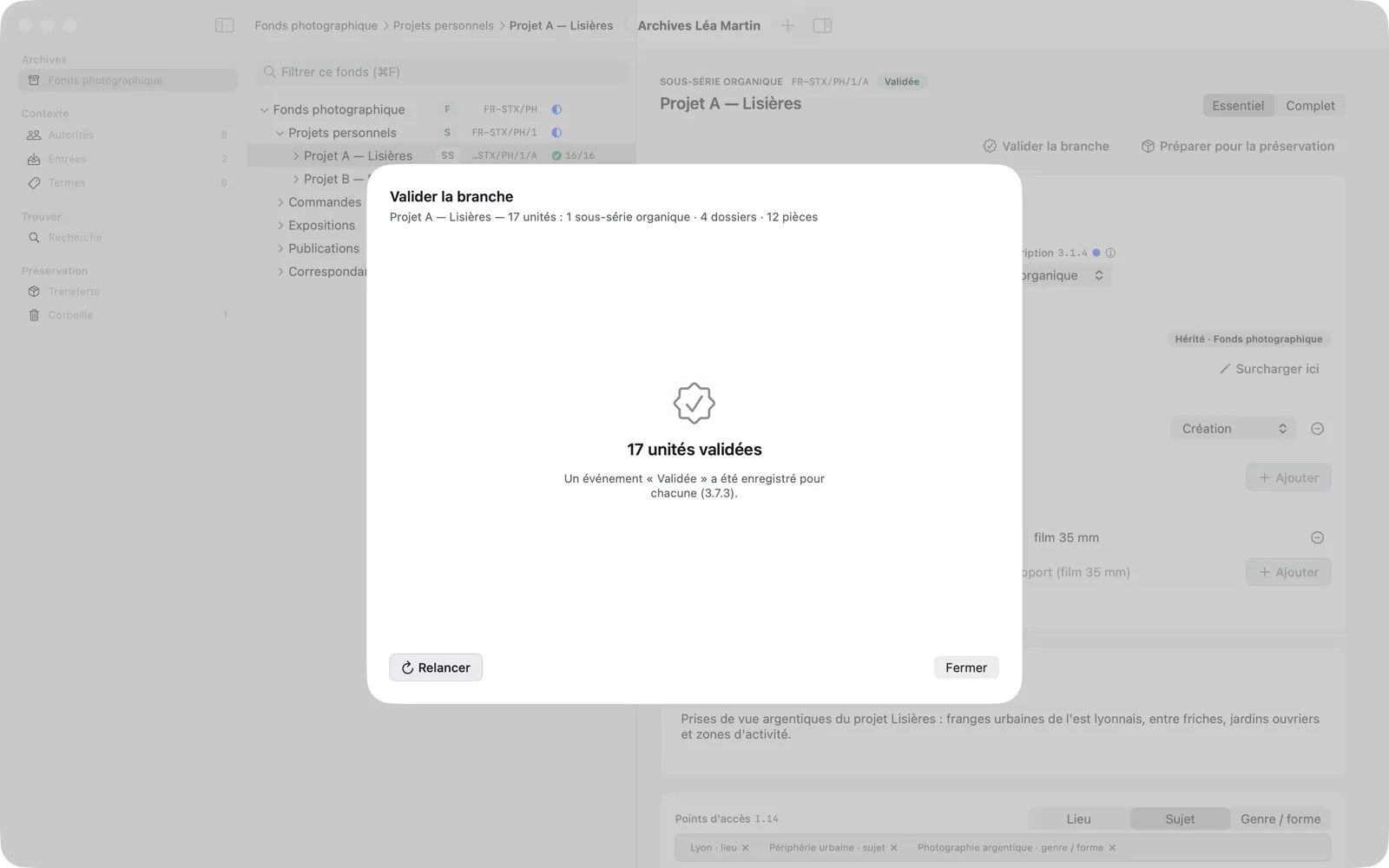
She checks I accept the 12 warnings, then clicks Validate 17 Units. A “Validated” event is recorded in each unit’s description (3.7.3).
The validation rules
| Rule | Check | Severity |
|---|---|---|
| V-01 | Title not empty and not “Untitled” | error |
| V-02 | Level present and consistent with the parent and the children | error |
| V-03 | Reference code segment present; full reference code unique | error |
| V-04 | At least one date, or an explicit “undated” | error (warning for “undated”) |
| V-05 | Well-formed dates, start ≤ end | error |
| V-06 | Extent: at least one statement | error (warning for an item) |
| V-07 | At least one effective creator, local or inherited | error |
| V-08 | Linked authority records and terms are active (not in the Trash) | error |
| V-09 | The unit’s dates fall within the parent’s | warning |
| V-10 | Scope and content empty at fonds or series level | warning |
| V-11 | Field not recommended at this level is filled | warning |
| V-12 | Local value identical to the inherited value | warning |
| V-13 | Digital object not found | warning |
| V-14 | Title identical to a sibling unit’s | warning |
A validated unit that you then modify is marked Modified since validation (Needs revalidation in search): validate the branch again before transferring it. To check a single unit without changing its status, use Check in the inspector.
Prepare for Preservation
With “Projet A — Lisières” selected and validated, choose Prepare for Preservation: the button under the description header, Preservation › Prepare for Preservation… (⌥⌘P) or the palette. The command is only available on a unit with the “Validated” status.
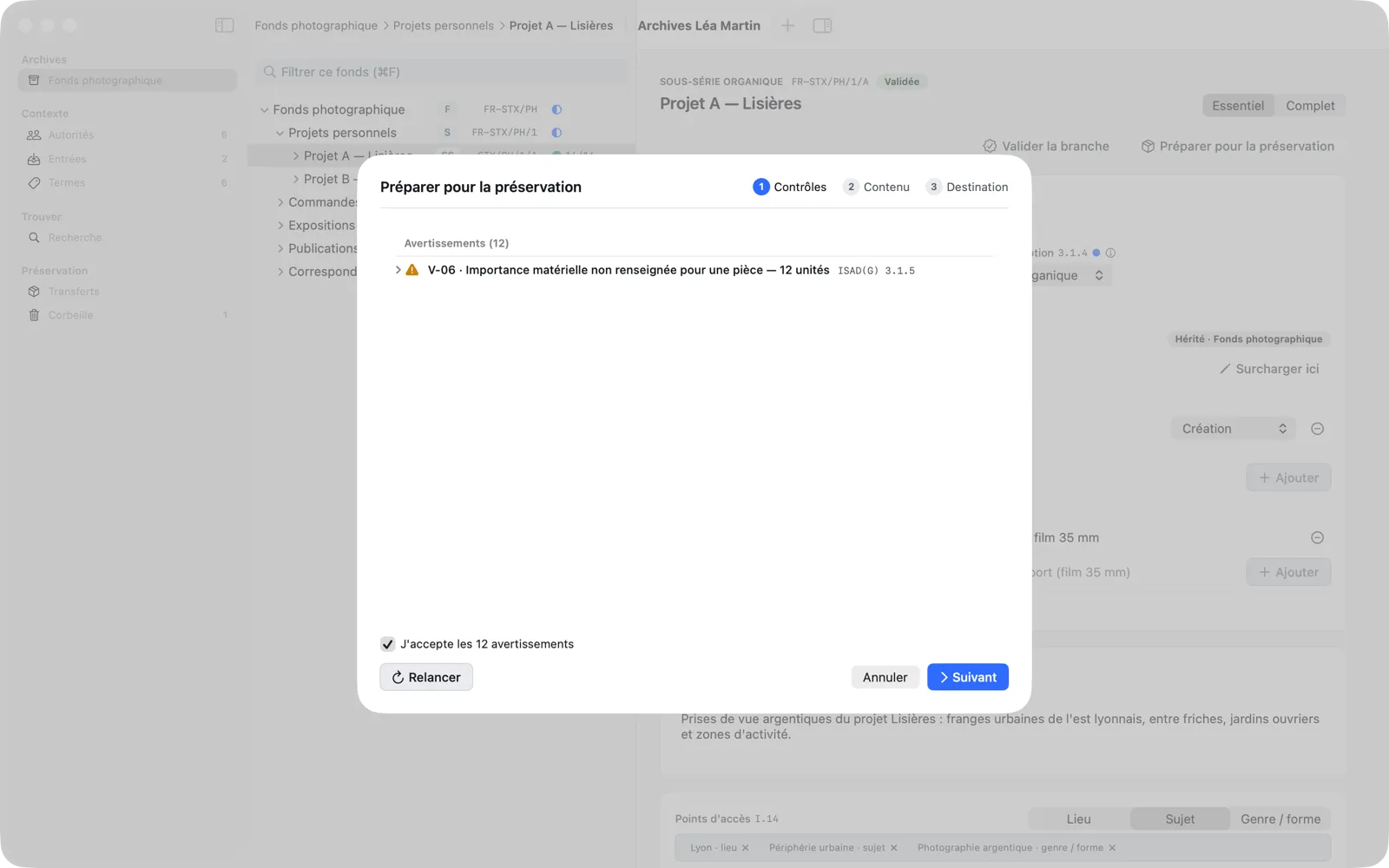
The sheet moves through three steps, shown at the top right.
Step 1: Checks
Memory Atlas runs the validation checks again and adds the transfer checks:
| Check | Verifies that… | Severity |
|---|---|---|
| P-01 | every unit is validated, with no change since | error |
| P-02 | V-01 to V-14 find no errors at transfer time | error |
| P-03 | every ancestor sent as context has a title, a level and a reference code | error |
| P-04 | the country code and the repository code are set | error |
| P-05 | no unit is already in a transfer in progress | error |
| P-06 | every digital object resolves to a readable file | error |
| P-07 | no two objects point to the same file | warning |
| P-08 | every object has a role; the branch has at least one object | warning |
| P-09 | objects are carried by a file or an item | warning |
| P-10 | the destination folder exists, is writable and has enough space | error (checked in step 3) |
As with validation, accept the warnings, fix the errors (Fix), then Run Again. Next becomes available when no errors remain and the warnings are accepted.
Step 2: Content
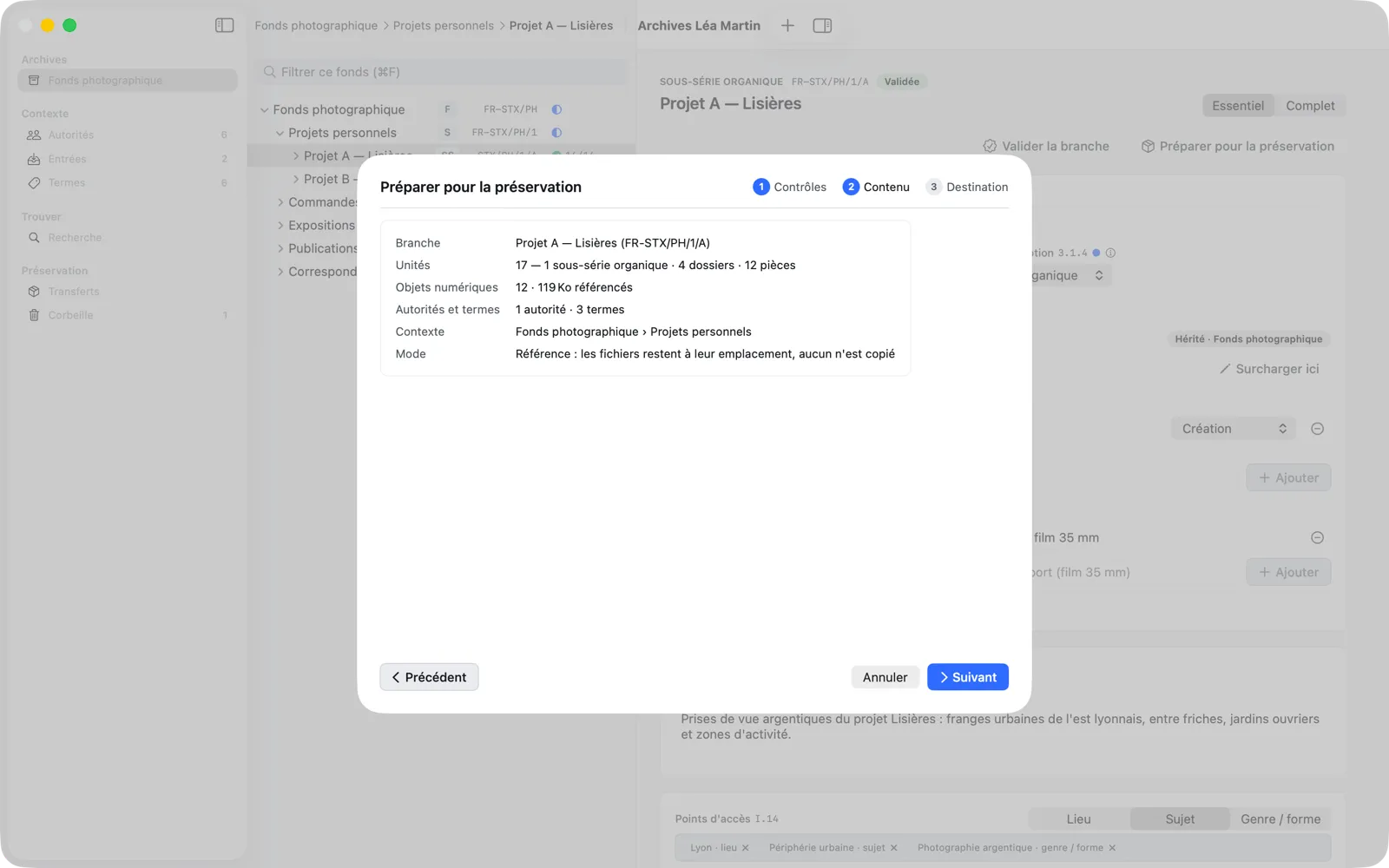
The Content step summarizes what the package will contain: the branch and its reference code, the number of units per level, the number and size of the referenced digital objects, the authority records and terms, the context (the ancestors of the branch) and the Mode: “Reference: files stay where they are, none is copied”.
Step 3: Destination
Choose the folder to write the package to with Choose…. Memory Atlas first suggests the default export folder (Settings › Transfers), which also remembers the last folder chosen here. The Package preview shows what will be written there:
ma-transfer-<transfer_id>/
  manifest.json
  archival-description.json
  authorities.json
  validation-report.json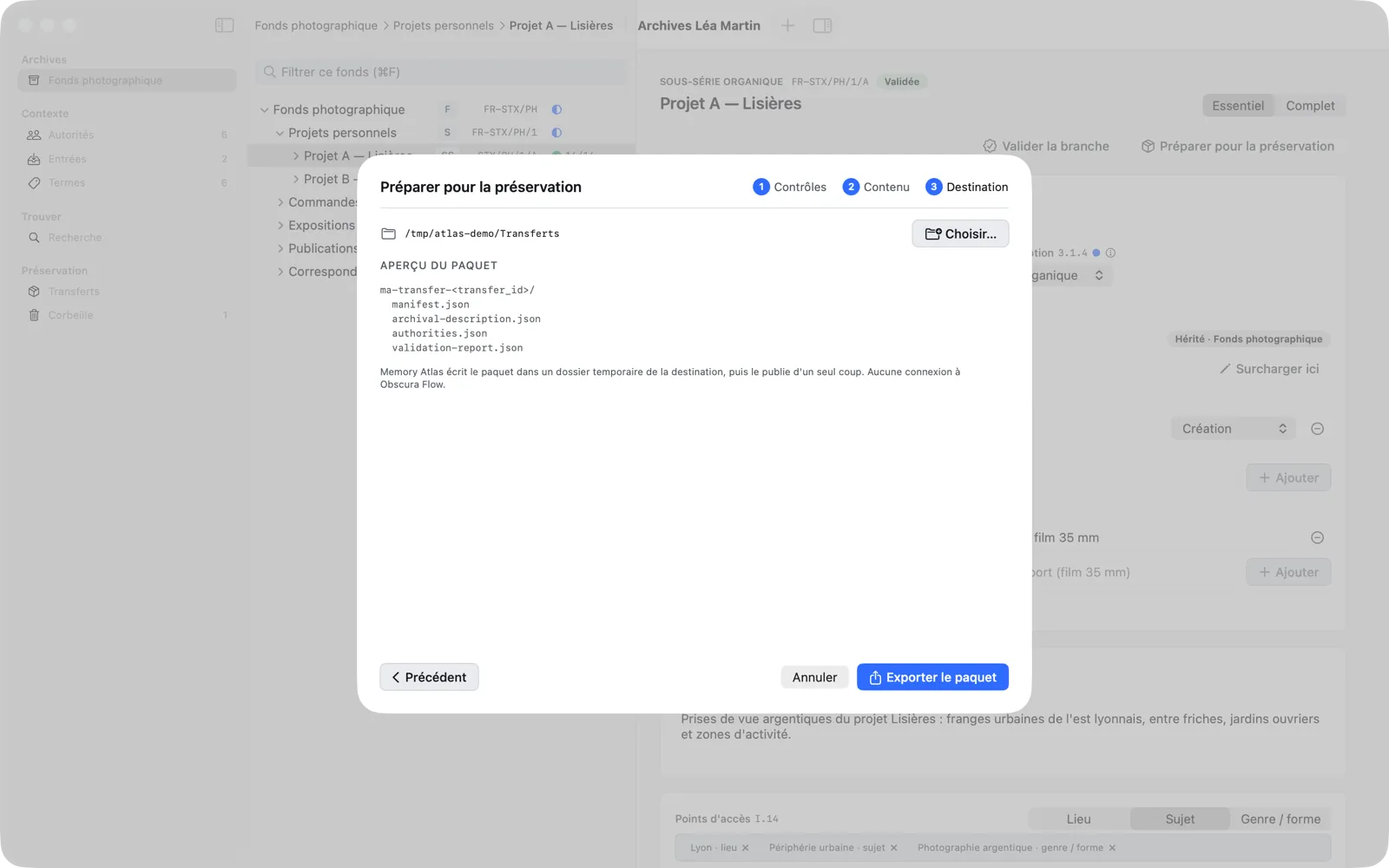
Export Package writes the package to a temporary folder in the destination, then publishes it in one go: an interrupted export never leaves an incomplete package behind.
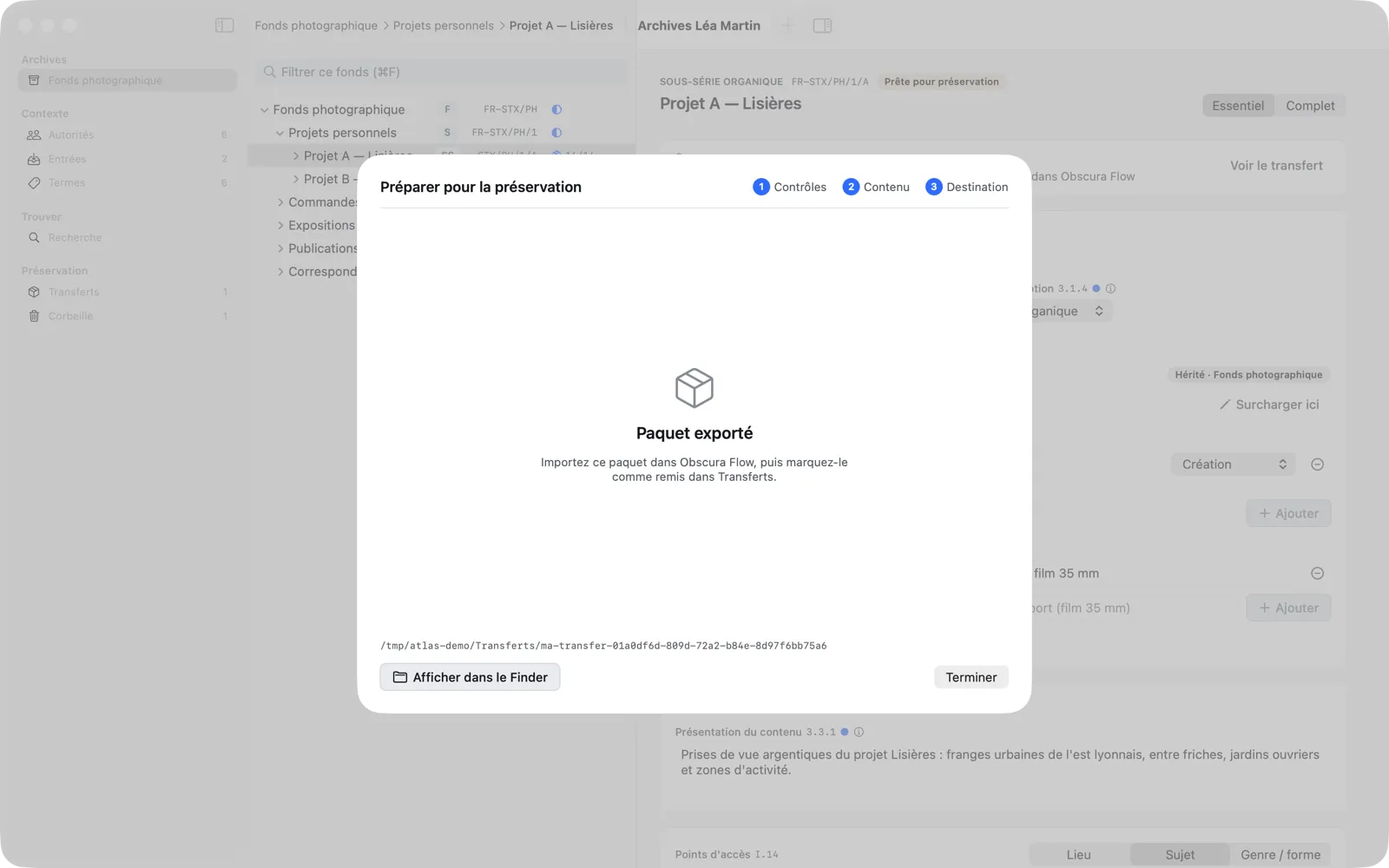
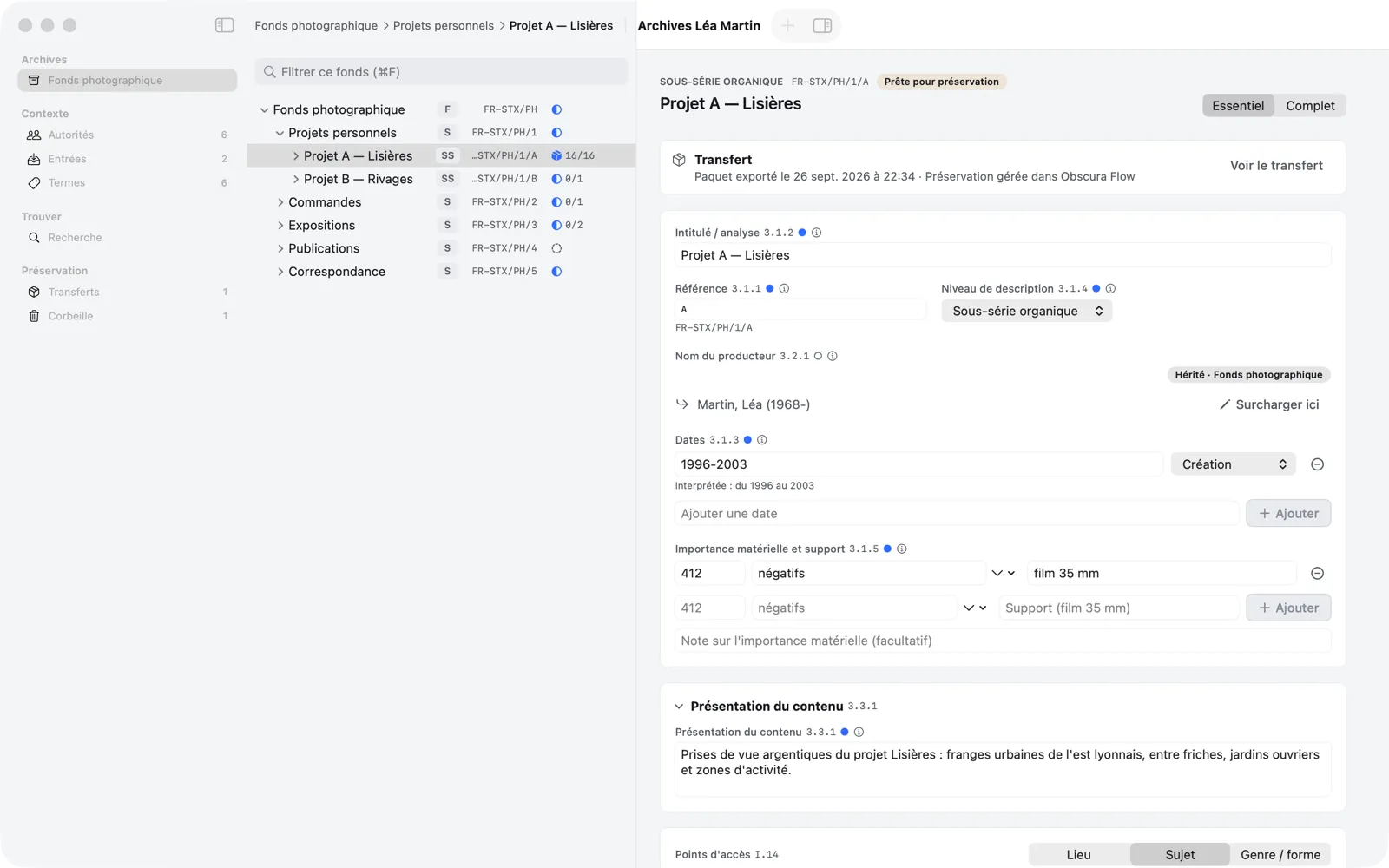
The units of the branch get the Ready for preservation status. While the transfer is in progress, the branch is locked: you can’t move it, move it to the trash or add units to it. The description of each unit in the branch shows a Transfer card with View Transfer.
Importing the package into Obscura Flow
Open Obscura Flow and import the exported ma-transfer-… folder into it, following the Obscura Flow documentation. Memory Atlas does not launch, detect or read Obscura Flow.
Tracking transfers
The Transfers destination (⌘6, or Preservation › Transfers) lists the exported packages, with their date, number of units and objects, and state (Exported, Delivered, Cancelled…). A transfer’s details show its identifier, the location of the package, its contents, its Timeline (Prepared, Exported, Delivered to Obscura Flow) and the Frozen validation report as it stood at export time, with the accepted warnings.
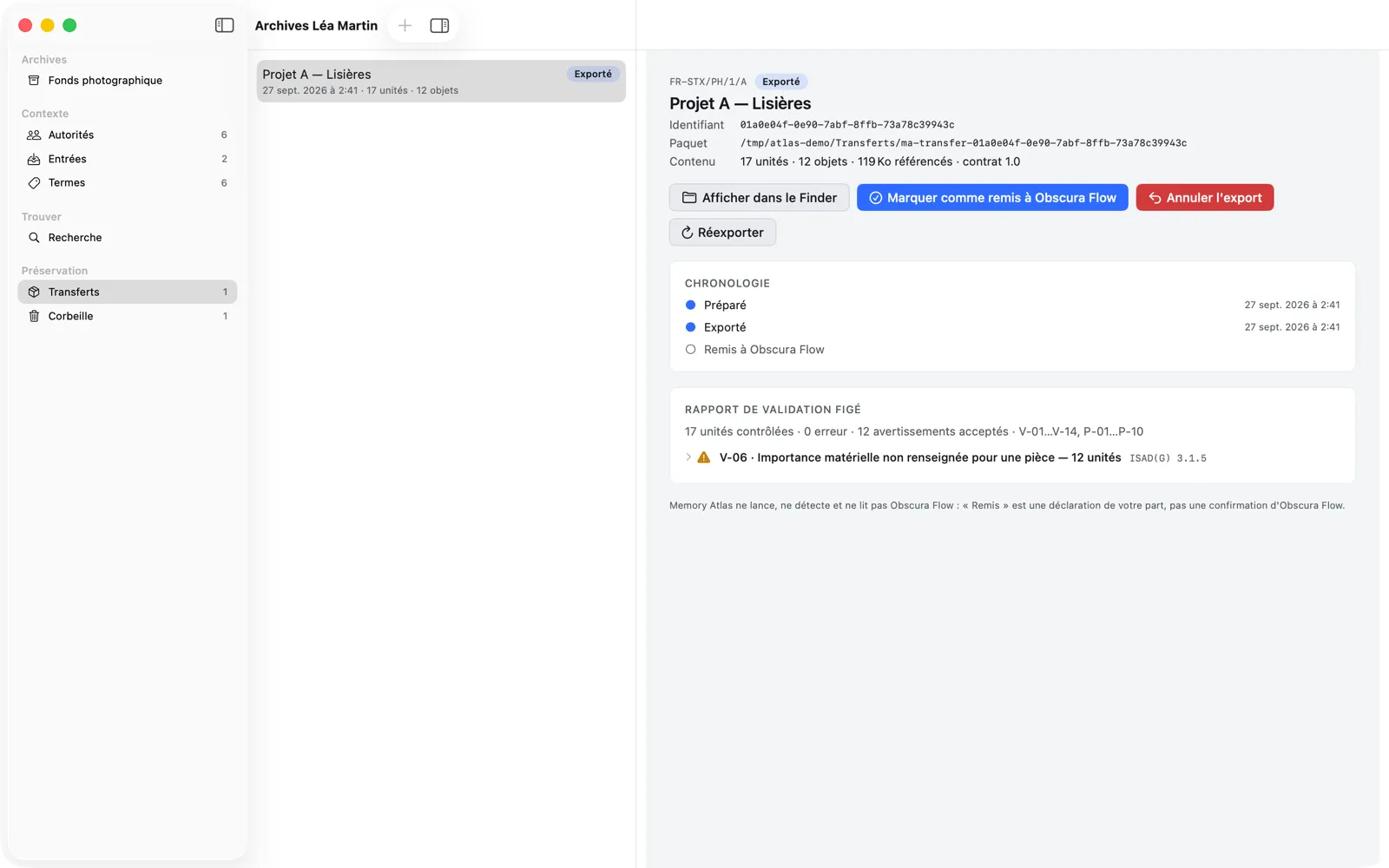
The available actions:
- Show in Finder opens the package folder.
- Mark as Delivered to Obscura Flow, once the import is done: the units become “Transferred”. This is a statement on your part, not a confirmation from Obscura Flow; you can undo it with ⌘Z.
- Cancel Export: the units go back to “Validated”; Memory Atlas then offers to Delete Package from the destination folder, or to Keep it.
- Export Again rewrites the package in its original folder; Export Again To… writes it to another folder. If the package was moved or deleted outside the app, the details say so (“Package not found”).
A transferred unit that you modify keeps the “Transferred” status, but it is marked Modified since transfer, in the tree and in its description.