Settings
Memory Atlas › Settings… (⌘,) opens the app settings, in three tabs. They apply to all your repositories. What is specific to a repository (name, country code, repository code, reference code separator, archivist’s name, default rules) is set in File › Repository Identity… (see chapter 2).
General
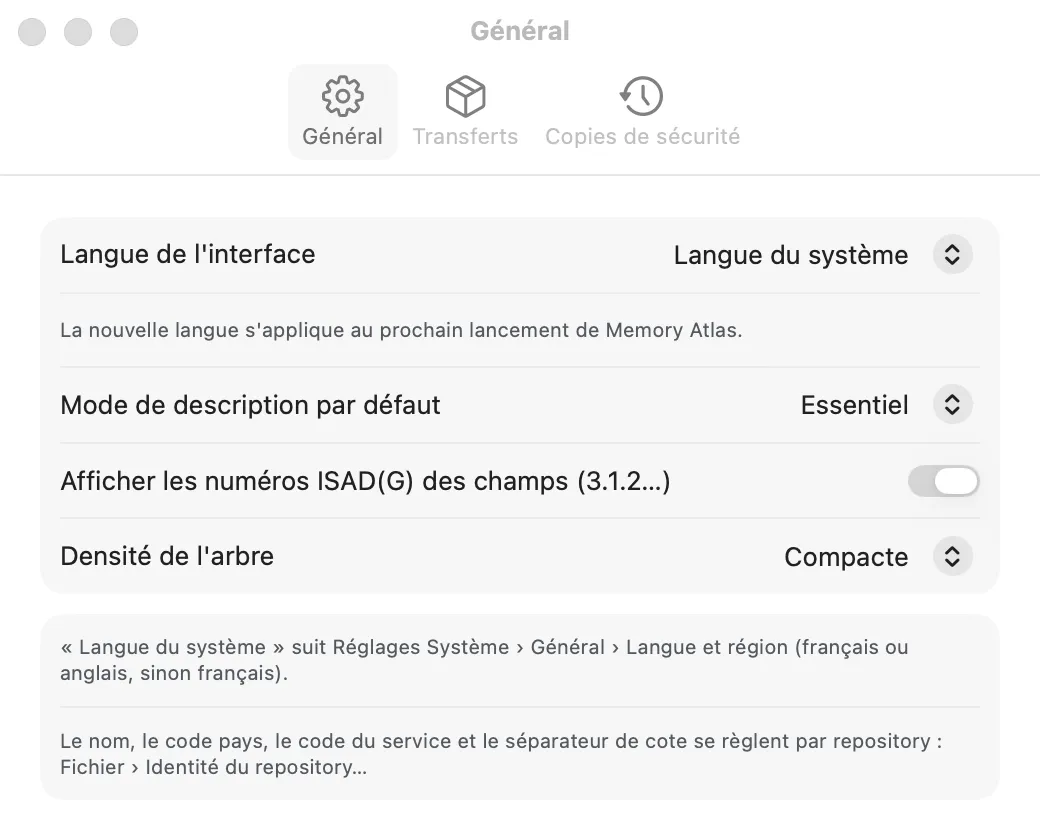
- Interface language: System language, Français or English. Choose English to switch the interface to English. The change takes effect at the next launch: the note “The new language applies the next time Memory Atlas starts.” reminds you of this, along with, in the installed app, the Relaunch now button. “System language” follows System Settings › General › Language & Region (French or English, otherwise French).
- Default description mode: Essential or Complete, for a new window; ⌘E then switches it in each window.
- Show ISAD(G) element numbers on fields (3.1.2…): shows or hides the numbers next to the element names.
- Tree density: Compact, Comfortable or Spacious.
- Automatically check for updates (checked by default): at launch, then once a day, Memory Atlas looks for a newly released version. If there is one, a window presents it with its release notes; nothing is installed without your consent. Uncheck the box so that Memory Atlas no longer makes any connection: you can still check yourself with Memory Atlas › Check for Updates….
Installing an update
- When the “A new version of Memory Atlas is available!” window appears, read the release notes, then click Install Update. Remind Me Later postpones it; Skip This Version stops offering it.
- Once the download is complete, click Install and Relaunch. What you were typing is saved, the app quits, replaces itself with the new version and reopens.
- If the new version changes the format of your repositories, a safety copy is taken first, when each one opens (see below).
Transfers
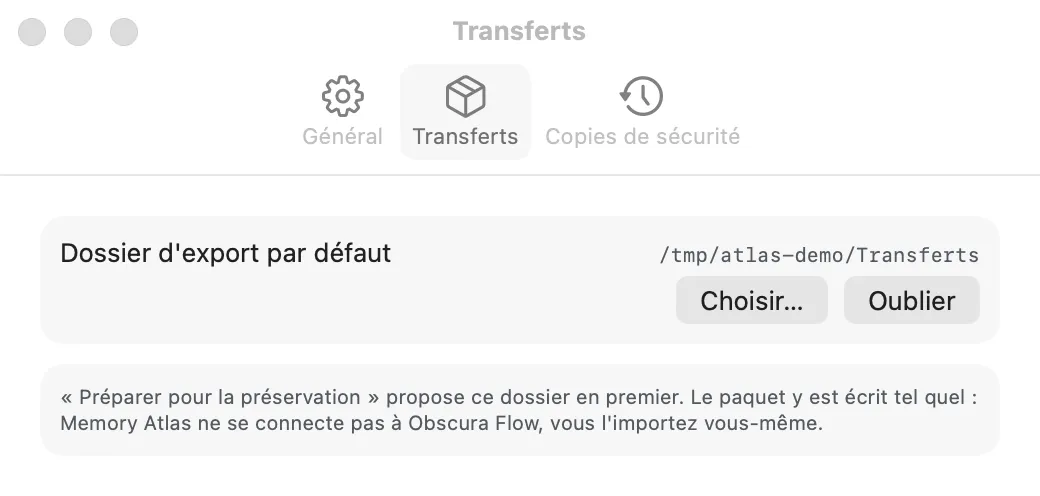
- Default export folder: the folder that “Prepare for Preservation” suggests first. Choose… sets it, Forget clears it (you are then asked for the folder at each export).
The package is written there as is: Memory Atlas does not connect to Obscura Flow, you import it yourself.
Safety copies
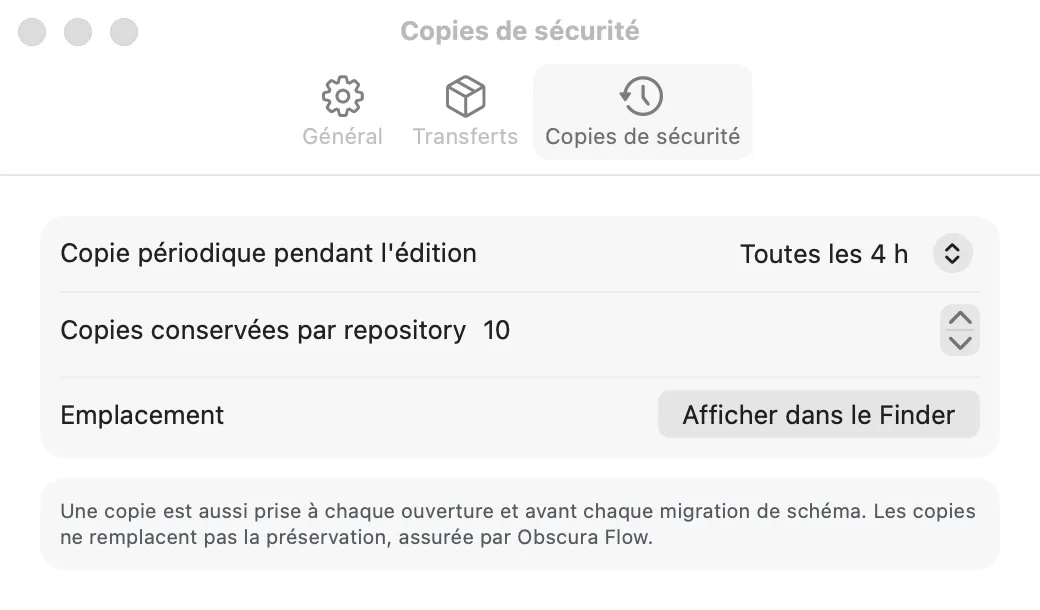
- Periodic copy while editing: Never, Every hour, every 2, 4 (the default) or 8 hours, Once a day.
- Copies kept per repository: from 3 to 50 (10 by default); beyond that, the oldest are deleted.
- Location: Show in Finder opens the copies folder.
Automatic safety copies
Memory Atlas copies the database of each repository:
- each time it opens;
- periodically, while a window is open and if something has changed since the previous copy (every 4 hours by default);
- before each update of the database format by a new version of the app.
The copies are stored in your user folder, under ~/Library/Application Support/Memory Atlas/Backups/, one subfolder per repository. They replace neither your backups (Time Machine…) nor preservation, which Obscura Flow handles.
Duplicated or moved repository
You can rename a repository or store it elsewhere (another folder, another disk): it keeps its safety copies.
If you duplicate it in the Finder, or if a colleague sends your repository back to you, each copy of the file has its own safety copies. Memory Atlas notices this on its own when it opens: there is nothing to do, and the safety copies of one never replace those of the other. The duplicate starts with an empty list of copies, then builds up its own; the original keeps its copies.
Restore a copy
- Choose File › Restore a Safety Copy…. From a repository window, the list offers that repository’s copies (of this copy of the file, if it was duplicated); from the welcome window, those of all your repositories and all their duplicates.
- Choose the copy by its date (and its number of units), then Restore….
- Say where to create the restored repository; the suggested name is “Name (copy of YYYY-MM-DD).atlas”.
The copy opens as a new repository, in the chosen location. The original repository is not modified: you can compare the two before deciding which one to keep.
The copy is first checked in full. A damaged copy is refused (“The restore failed”): choose an older one (see Full check every week).
Exporting and importing JSON
To archive a snapshot of your work in an open format, or pass it on to another Memory Atlas installation:
- File › Export › JSON… writes a folder containing
manifest.json,archival-description.jsonandauthorities.json, then offers to show it in the Finder. - File › Import an Export… reads such a folder and creates a new repository from it, keeping the identifiers.
This export is not a transfer package: for Obscura Flow, use Prepare for Preservation.