The window says “Opened read-only”
A banner at the top of the window, with a padlock, and “(read-only)” in the title indicate a repository opened read-only: you can look at everything, but no editing command is available.
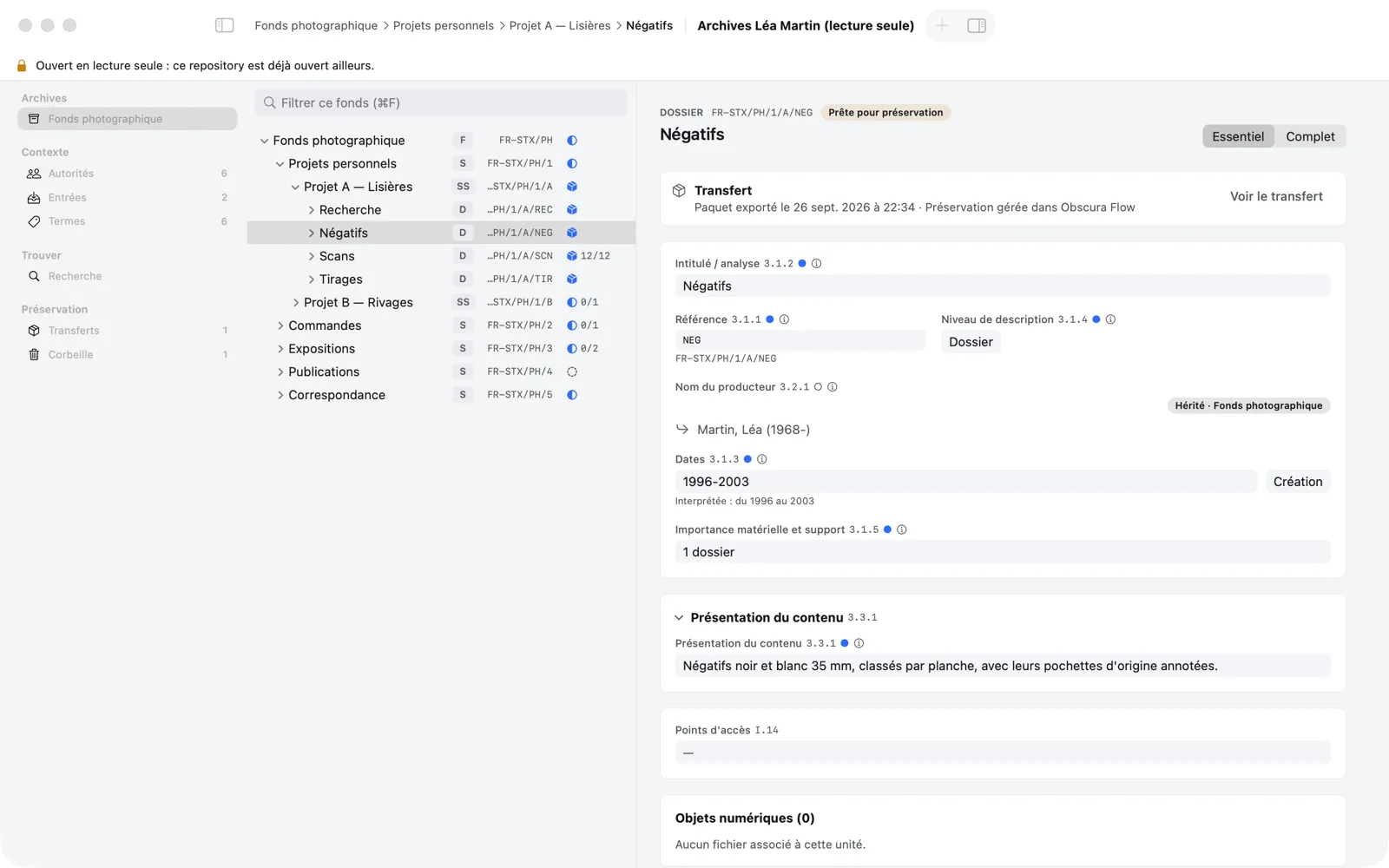
Values are shown as text: you can select and copy them (⌘C). An empty field shows “—”. The buttons that would change the repository (Add, Override here, Mark Described, Move to Trash…) don’t appear. Everything used for looking things up remains available: the tree, search and its filters, Quick Look (Space) and Show in Finder on files, Reveal in Tree, View Transfer and File › Export as JSON….
The banner gives the reason:
- “this repository is already open elsewhere”: it is already open in another Memory Atlas window, or in another instance of the app. A repository can only be edited in one place at a time, to protect the database. Close the other window, then reopen the repository.
- “this repository’s location cannot be written to”: the file is on a locked or read-only volume, or you don’t have permission to write to its folder. Copy it to a folder you can write to.
- “this repository’s database is damaged”: you chose to open a damaged repository read-only (see below).
“Damaged repository”
When opening a repository, Memory Atlas checks the integrity of the database. If it is damaged (crash, failing disk, sync during a write…), the window shows Damaged repository instead of the contents:
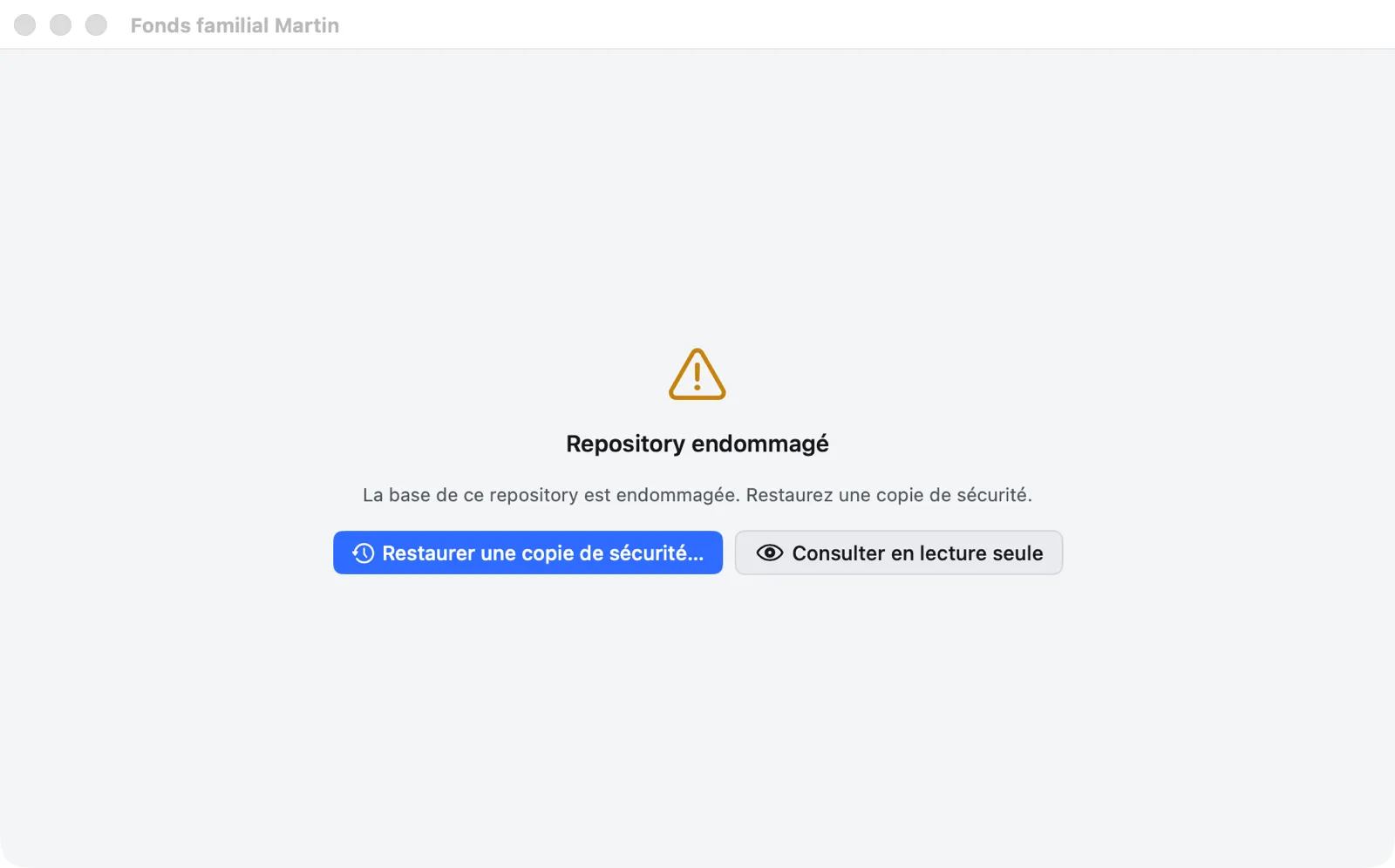
- Restore a Safety Copy… offers this repository’s automatic copies and opens the one you choose as a new repository (see Restore a copy).
- Open read-only opens the repository without checking or modifying it, so you can recover what can be recovered.
These operations never modify the damaged file.
Full check every week
The check at opening is quick, but it doesn’t check everything: a damaged index can slip past it. So once a week, a few seconds after a repository opens, Memory Atlas runs a full check in the background. You can keep working in the meantime; no message appears if everything is fine.
To run it yourself, choose File › Check Repository Integrity… (or type “integrity” in the ⌘K palette). A banner “Checking the repository’s integrity…” is shown until the result: “No problem in this repository’s database,” with how long the check took.
If the check finds errors, what you were typing is saved, then the window shows Damaged repository: restore a safety copy, or open the repository read-only. Until a copy has been restored, this repository opens directly on that screen. Copies taken after the damage appeared contain it too: restoring checks them and refuses a damaged copy (“The restore failed”); choose an older copy instead.
Viewing a damaged repository
Viewing always opens, on whatever can still be read. The banner at the top of the window reminds you of it and names what is missing:
- “Unreadable parts, shown empty: …” lists the lost parts (for example the search index, the authority records); they appear empty in the window, and the rest can be viewed and exported normally;
- “Search is turned off.”: the search index is damaged; the Search destination shows “Search unavailable.” The tree filter (⌘F) still works;
- “No data could be read from this database.”: the file can no longer be read at all; only restoring a copy can bring back the contents.
The banner’s Restore a Safety Copy… button starts the restore without closing the window. Nothing is written while viewing: no safety copy, no repair, no rebuilding of the index.
“No safety copy”
Restore a Safety Copy… shows this message when no copy exists yet for this repository. Memory Atlas takes one each time the repository opens and every 4 hours of activity (adjustable in Settings › Safety copies): a repository you have just created doesn’t have one yet.
A recent repository cannot be found
If, in the welcome window, you click a repository that has been moved or renamed, Memory Atlas says that it “cannot be found” and offers:
- Locate…: point to the
.atlasfile in its new location; it replaces the old one in the list; - Remove from List;
- Cancel.
“This repository is in a folder synced by…”
The repository is in an iCloud Drive, Dropbox or Google Drive folder. Syncing can corrupt the database while Memory Atlas is writing. Close the repository, move the .atlas file to a local folder that is not synced (and backed up by Time Machine, for example), then reopen it. The Close button hides the banner in this window.
A digital file is “not found”
The file was deleted or moved to another disk, or the disk that holds it is not connected. Reconnect the disk, or use Locate… on the file’s row (see A missing file). On a network volume that isn’t mounted, Mount Volume… mounts it after you confirm (see A file on a network volume). A file that was simply renamed or moved on the same disk is found again automatically. As long as a file in the branch is missing, the transfer is blocked (P-06).
The Digital objects › File not found filter in search lists all the units concerned.
I can’t move, delete or add to a branch
The branch is Ready for preservation: a transfer package was exported and has been neither delivered nor cancelled. Open Transfers, then choose Mark as Delivered to Obscura Flow once the import is done, or Cancel Export to resume work (see Tracking transfers).
A Transferred unit cannot be moved to the trash.
“Prepare for Preservation” is dimmed
The command is only available on a unit with the Validated status. Select the top of the branch and validate it first (⌘L). If you modified a unit after validation, validate the branch again.
“Validate N Units” stays dimmed
At least one error remains, or the warnings have not been accepted. Fix the errors (Fix opens the unit on the field in question), click Run Again, then check I accept the N warnings.
Memory Atlas won’t create a unit here
The hierarchy rules apply: an item cannot have children, and a level cannot be placed under a level more specific than itself. Change the unit’s level (right-click › Change Level) or choose another parent. The message at the bottom of the window names the rule involved.
I made a mistake
Edit › Undo (⌘Z) undoes the last operation, whatever it was: typing, creation, moving a branch, moving to the trash, validation, export, delivery. Redo (⇧⌘Z) does it again. A unit moved to the trash can also be restored from the Trash.
The repository was created by a newer version
If a colleague opened the repository with a newer version of Memory Atlas, your version may refuse to open it (“This repository was created by a newer version of Memory Atlas…” or “…changed by a newer version…”). Update the app.
How do I switch the interface to English?
Memory Atlas › Settings… (⌘,) › General › Interface language › English, then relaunch the app. Your data is not translated.
Sending a diagnostic report to support
If a problem persists, attach a diagnostic report to your request:
- If possible, open the repository concerned and bring its window to the front.
- Choose Help › Export Diagnostic Report….
- Choose where to save the text file, then click Save. Show in Finder shows it to you.
- Open it and read it over before sending it.
The report contains the versions of Memory Atlas and macOS, the technical state of the repository (identifier, integrity check, database updates, record counts, safety copies) and the app’s latest logs. It contains none of the content of your descriptions: no title, note, name, term, file name or repository name. Memory Atlas doesn’t send it itself: you are the one who passes it on.
Where is my data?
- Your descriptions, authority records, terms, accessions and transfers: in the
.atlasfile, wherever you created it. - Your digital files: in their original location; the repository only keeps a link.
- Safety copies:
~/Library/Application Support/Memory Atlas/Backups/. - Transfer packages: in the destination folder chosen at export.